
Voice Aloud Reading

iPhone / iPad · iOS 16.6+

Tap a phrase.Let your phone speak.

Tap a ready-made phrase and it is read aloud. You can also type your own text, or record your own voice for each phrase in advance.

Scan with your iPhone

Voice Aloud Reading

When it helps

What it does

  1. 01

    Tap to speak

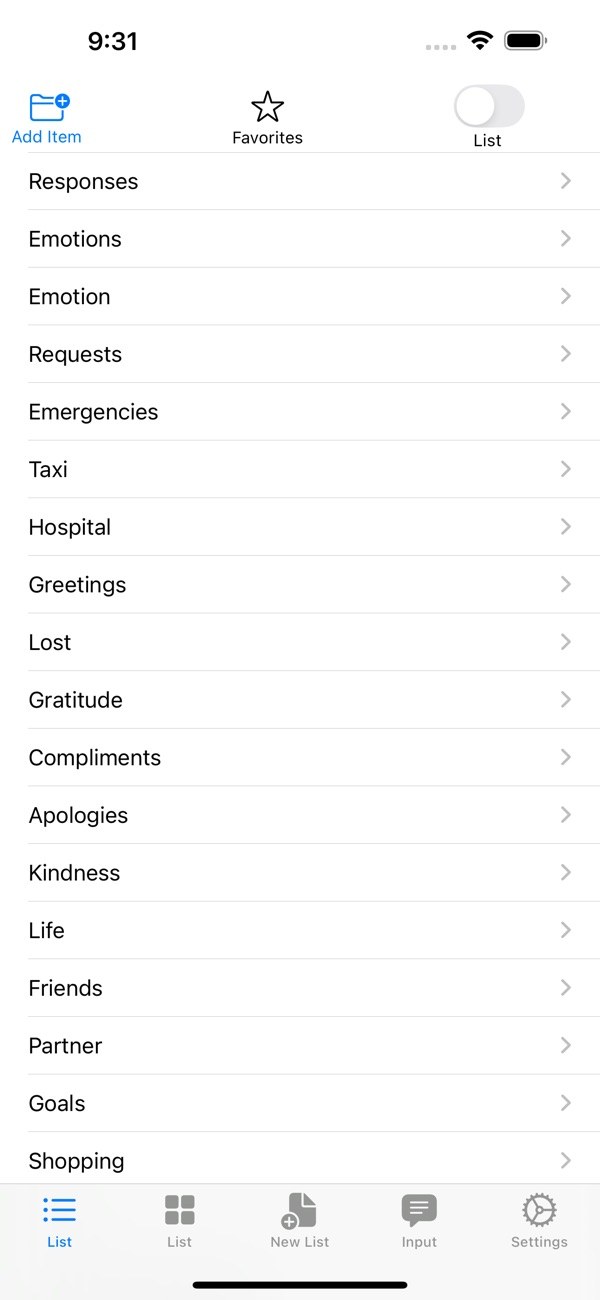
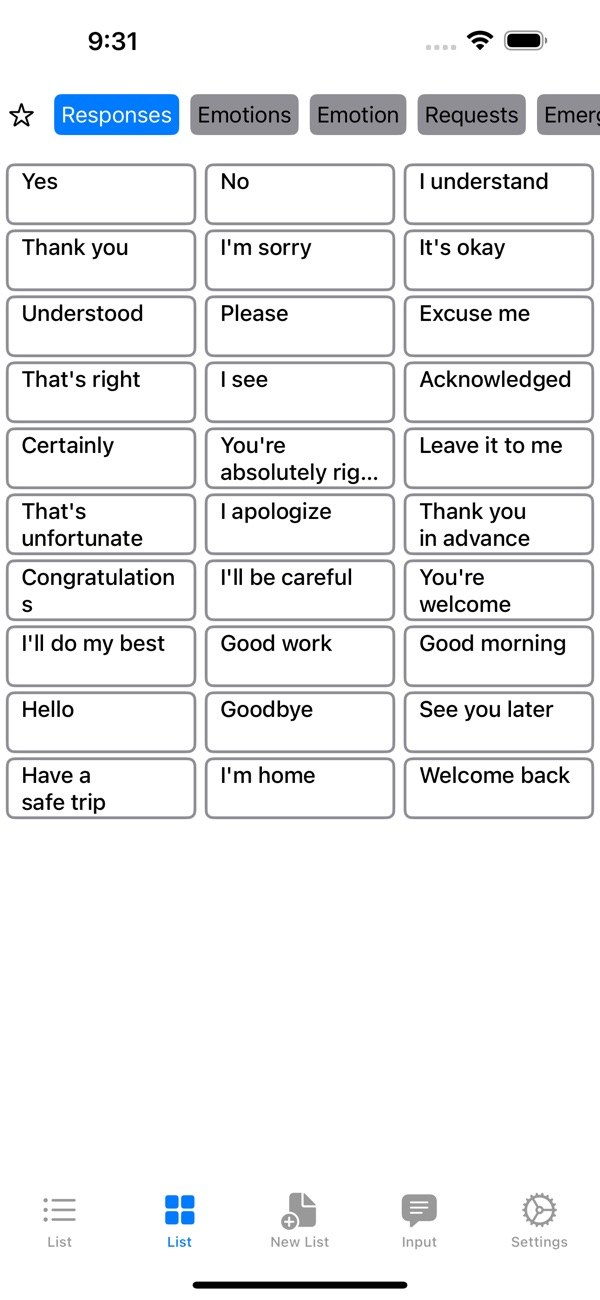
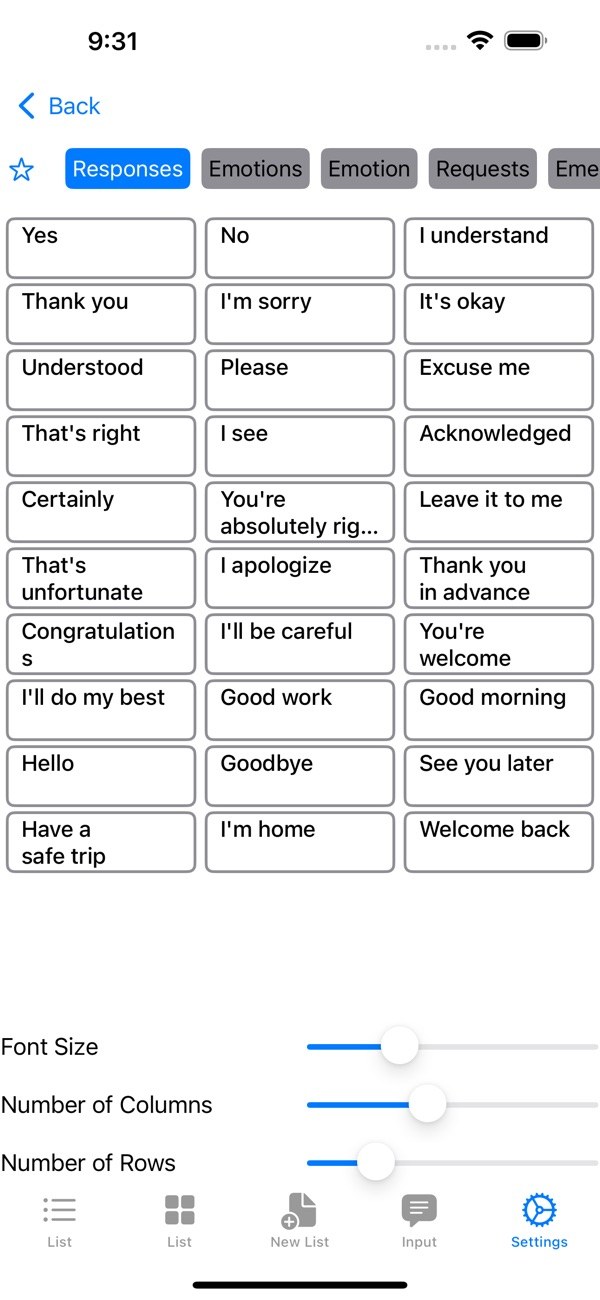
    Tap a phrase from a category and it is read out right away. Categories include Responses, Requests, Emergencies and Hospital.

  2. 02

    Your own voice

    Before losing your voice, for example before surgery, record yourself saying each phrase. Tapping it then plays your recording instead of a synthesized voice.

  3. 03

    Add phrases freely

    Add from ready-made lists, or write your own phrases and categories. There is no limit.

  4. 04

    Type and play

    Anything you type can be read aloud. Typed text stays in the history so you can call it up next time.

  5. 05

    Easy to see

    Change the font size and the number of columns and rows. A phrase can also be shown full screen to hold up to someone.

  6. 06

    Full backup

    Save phrases, their order, recordings and settings in one file and move them to a new device.

In detail

01

Speak in your own voice

Record your voice for each phrase, and tapping it plays your recording instead of a synthesized voice. Recordings stay on your device. Start from Voice in Settings.

  • Up to 60 seconds per phrase
  • Import audio you already have, such as Voice Memos
  • Silence before and after is trimmed automatically and can be undone
Tap a phrase to say it
02

Tap a phrase to say it

Phrases are laid out as buttons by category, and the one you tap is read out immediately. Put the ones you use often into Favorites to see them together.

  • Switch between categories
  • Add to Favorites
  • List view and grid view
Add the phrases you need
03

Add the phrases you need

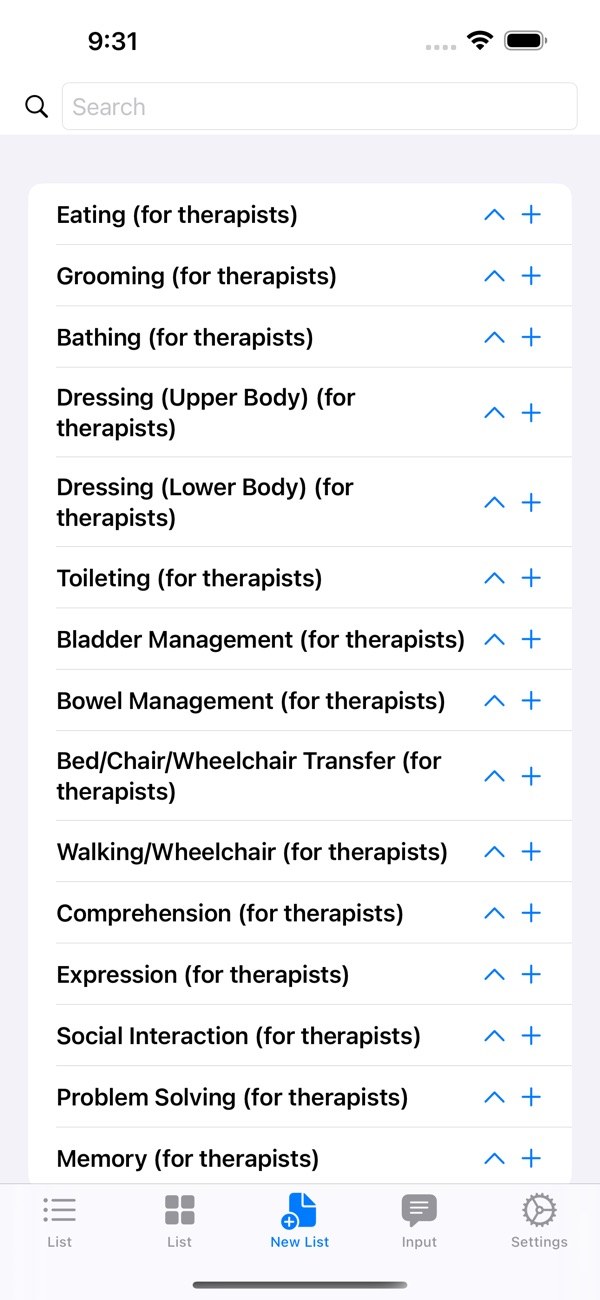
Use New List to add ready-made lists, or write your own phrases and categories with no limit. You can also reorder them and move phrases between categories.

  • Search the lists
  • Add, edit and reorder phrases
  • Add and rename categories
Type it, then play it
04

Type it, then play it

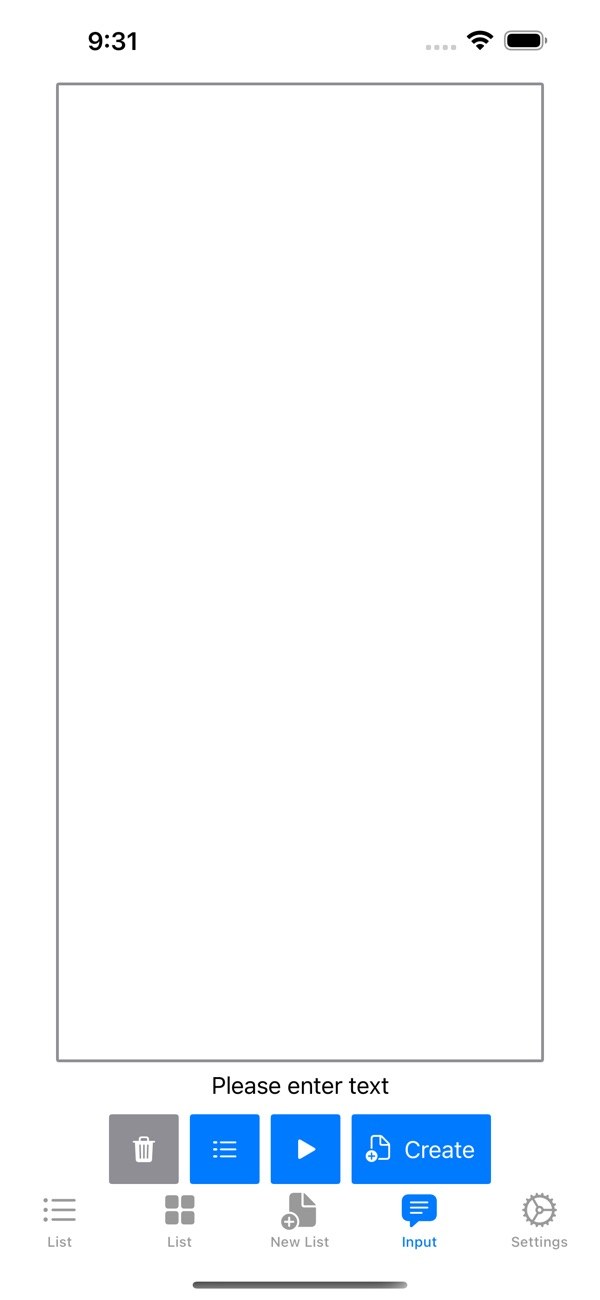
The Input tab has a large text box with buttons to clear, open the history, play and create a phrase. What you type is kept in the history.

  • Play button reads the text
  • History of typed text
  • Create button for saving a phrase
Make the buttons easier to read
05

Make the buttons easier to read

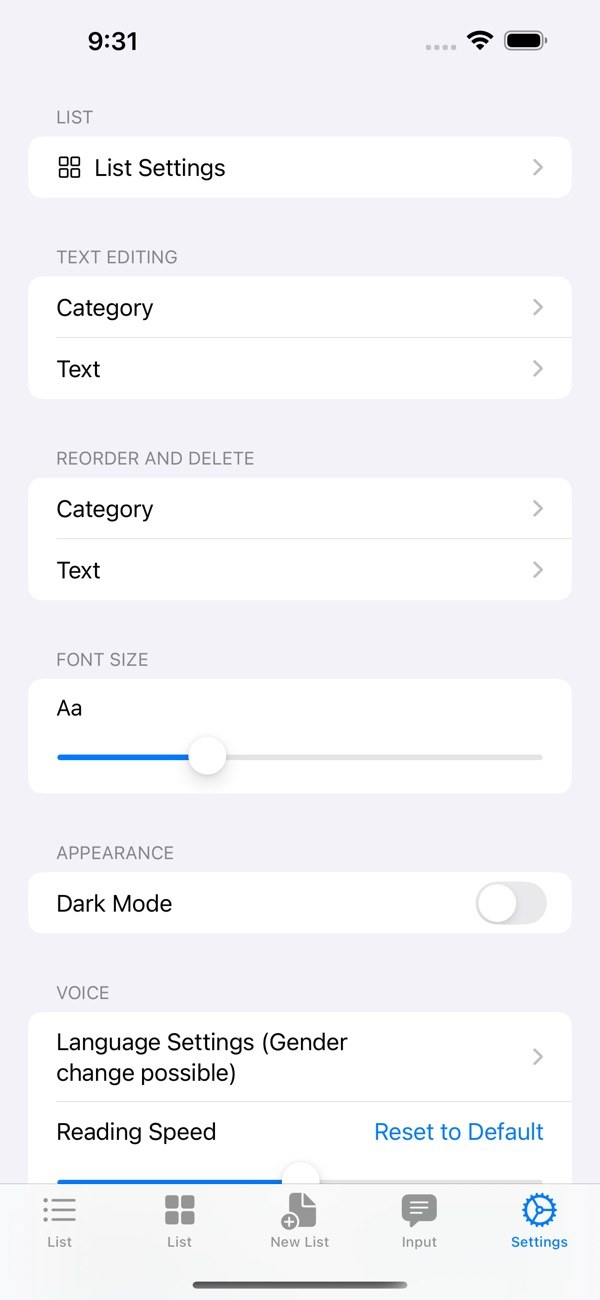
In Settings you can change the font size, the number of columns and the number of rows, so the layout suits your screen and your eyesight.

  • Font size
  • Number of columns
  • Number of rows
Choose the voice and appearance
06

Choose the voice and appearance

Settings has a Dark Mode switch and a Voice section with language, reading speed and more. Pick from the voices installed on your device.

  • Dark Mode
  • Reading speed
  • Voice and language settings

How it works

  1. 1
    Pick a category

    Pick a category

    On the List screen, choose a category such as Responses, Requests or Emergencies.

  2. 2
    Tap a phrase to hear it

    Tap a phrase to hear it

    Tap the phrase you want and it is read out at once. Star the ones you use often to add them to Favorites.

  3. 3
    Add what is missing

    Add what is missing

    Use New List to add ready-made phrases, or type your own and add them yourself.

  4. 4
    Adjust the display and voice

    Adjust the display and voice

    In Settings, change the font size, columns and rows. The voice and reading speed are in the Voice section.

Screens

Categories and Favorites

FAQ

What is My Voice?

You record your own voice for each phrase. Tapping that phrase plays your recording instead of a synthesized voice. Start from Settings > Voice > My Voice.

Where are my recordings stored?

On this device only. They are not sent anywhere, including to our servers.

Will I lose my data when I change devices?

The full backup in Settings > Full Backup saves phrases, categories, favorites, order, recordings and settings in one file. Load it on the new device to restore them.

Is the app paid?

Every reading feature is free. Ads are shown, and a one-time purchase to remove them is available. Nothing is locked behind that purchase.

Does it work offline?

Reading aloud and playing back your recordings work without a connection. Only some high-quality voices need an initial download in iOS.

How many languages are supported?

Eleven, including Japanese, English, Chinese (three variants), French, German, Italian, Korean, Russian and Spanish. The app switches automatically with your iPhone's language setting.

Can I add my own phrases and categories?

Yes, with no limit. You can add, edit, reorder and move phrases between categories, and add, rename and reorder categories.

Can I save the spoken text as a file?

Yes, you can share the generated audio file with other apps. If a phrase has your own recording, that recording is exported.

Say it with a tap.

Download on the App Store
Voice Aloud ReadingGet